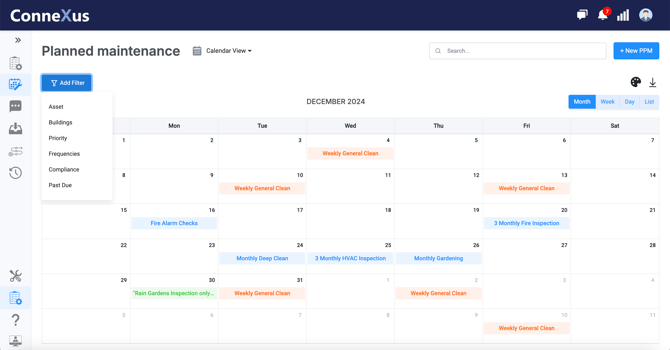
How it Works?
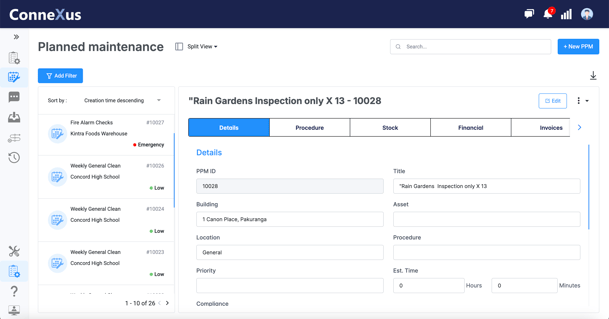
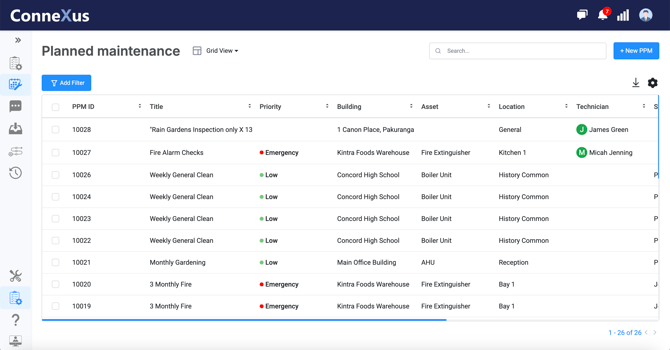
In split view and grid view the PPM record is treated as the master PPM, this means making a change in those views will make updates to all future PPM's.
In the Calendar view each PPM is its own entity. This means making changes to one entity won't make changes to another.
Tasks Related To Compliance
When creating a work order we can allocate a compliance type if required. This is particularly useful as it allows us to filter compliance related tasks easily.
Compliance types can be managed from system preferences and can be added to fit your organization.
Compliance related PPM's show in numerous reports and gives transparency to the organization.
Sending of Planned Work Orders
In system preferences we can choose a designated amount of time before the service date to send the planned work order out. This helps automate processes and ensures all tasks get issued and don't get missed.
You can also manually send the planned work order out, so if you need to reassign or remind the current technician or supplier of the upcoming task you can resend that work order.
Frequency
Frequencies include daily, weekly, monthly and yearly.
Selecting a frequency will be used to create the reoccurring job. Once the frequency type is chosen we choose a number against the frequency. This is how we can create reoccurring jobs for example 3 Monthly Fire Inspection.
Suspending PPM Tasks
In Connexus we can suspend planned maintenance tasks without deleting the PPM record. Suspension of tasks can be due to renovations or minor projects in a specific location, this means you may want to halt maintenance of those assets or locations for a period of time. When suspending a task we can choose a date for when we want the PPM to recommence, once this date has pasted the PPM cycle will recontinue.
Planned Maintenance Fields
| Title | The name or description of the planned maintenance task. |
| Building | The specific building where the task will occur. |
| Location | The exact area or room within the building for the task. |
| Asset | The equipment or system requiring maintenance. |
| Procedure | The step-by-step process to complete the maintenance task. |
| Labour Cost | The estimated cost of labor for the maintenance. |
| Stock Cost | The cost of materials or parts needed for the task. |
| Estimate Time | The expected duration to complete the maintenance. |
| Priority | The urgency level of the maintenance task. |
| Compliance | Indicates if the maintenance is required to meet legal or regulatory standards. |
| Skill | The specific expertise or trade required for the task. |
| Cost Centre | The financial category or department associated with the task. |
| Cost Code | The accounting code used to track expenses for the task. |
| Next Service Date | The scheduled date for the next maintenance. |
| Frequency | How often the maintenance is scheduled (e.g., weekly, monthly). |
Master PPM
In Split and Grid View making changes to a PPM will impact all future tasks. We call this the master PPM.
In calendar view each task is it's own entity. This allows us to make individual changes to each PPM task easily without impacting any other PPM of the same type.
Split View
To access the split view:
- From the sidebar, select Planned Maintenance.
- In the Planned Maintenance Module, select the (Split View) icon to switch to the Split view.
The list pane on the left shows the list of Planned Maintenance Routines set in your organization.
- Use the Sort By option to choose how you want to see your Planned Maintenance listed.
- Select a Planned Maintenance Routine from the list to display the details pane on the right. The details pane displays the form fields for the selected Planned Maintenance Routine.
Grid View
To access the table view:
- From the sidebar, select Planned Maintenance.
- In the Planned Maintenance module, select the (Grid View) icon to switch to the Grid View.
The Grid View is a compact table of Planned Maintenance Routines. It gives you an overview of the current Planned Maintenance Routines in your organization.
Calendar View
To access the table view:
- From the sidebar, select Planned Maintenance.
- In the Planned Maintenance module, select the (Calendar View) icon to switch to the Calendar View.
The Calendar View it shows an overview of all upcoming Planned Maintenance Work Orders in a calendar format. Clicking into a Planned Work Order will bring up the detailed view of the Planned Work Order. You can also drag and drop Planned Work Orders in the calendar view to change the due date. In the calendar view we can view the Work Orders by Month, Week, Day and List.