About
In Connexus we can manage all work orders streamlining the process of creating, assigning, tracking, and completing tasks related to maintenance and repairs. Work orders can be categorized by trade categories (e.g., electrical, plumbing, mechanical), can be prioritized based on urgency, and assigned to the relevant technician or supplier to complete the job. The system ensures transparency and efficiency by centralizing communication, tracking progress, and documenting all work related costs.
Priority Levels
Default Priority LevelsConnexus offers 4 default task priorities: 1- Emergency, 2 - High, 3 - Medium and 4 - Low.
Priority levels can be configured in system preferences by an admin to better fit your organisations operations. Priority levels can be associated with Service Level Agreements (SLAs), which automatically assign a time frame for task completion based on the selected priority. For example, if a low priority is chosen and the SLA for that priority is 7 days, the system will set the task's due date to 7 days from the current time. Similarly, if a high priority is selected and the SLA is 1 day, the system will automatically set the due date to 1 day from the current time. This ensures that tasks are completed within the agreed-upon timeframes based on their urgency.
Assigning Work Orders
We can assign work to any technicians whether internal or external and any suppliers we hold in our system. Work Orders can easily be assigned to any active technicians or suppliers in which they will receive an interactive work order to their email address. Assignments can be made based on suitability, price and availability, this helps ensure timely completion on work.
Stock and Timesheets
Stock: Within a work order, users can record the inventory items used for the task. This ensures materials are accounted for, helps track stock levels, and provides a clear cost breakdown for reporting and invoicing.
Time Sheets: Technicians can log their working hours directly in the work order, documenting the time spent on each task. This helps calculate labor costs, monitor productivity, and ensures transparency for approval and invoicing processes.
Financials
Financials in a work order provide an overview of associated costs, including labor and stock cost. This feature ensures accurate tracking of expenditure and pushes data to many of our financial reports in the Connexus Dashboard Module.
Invoicing
Technicians or suppliers can easily attach invoices to their work orders. Once the job is complete users can review and approve the invoice if they are satisfied with the job. If your organization has a financial integration in place, invoices can be seamlessly forwarded to the accounts team for processing.
Documents and Images
Images or documents can be added to work orders to help guide the technician to complete the task. These could include images of the asset, instructions or building diagrams. While completing the task technicians can also add images to the work order, this approach provides transparency to both the office based staff and the technicians out in the field.
Notes
Work order notes enable users to document important details, updates, or observations. These notes ensure clear communication among team members and serve as a reference throughout the task's lifecycle.
Work Order Fields
| Reporter Name | The name of the individual reporting the issue. |
| Email: The email address where the reporter will receives updates. | |
| Phone | The contact phone number of the reporter. |
| Category | The type of work required e.g., electrical, plumbing. (Can be configured in System preferences). |
| Problem | A description of the issue or fault to be resolved. |
| Building | The specific building where the issue is located. |
| Location | The exact area or room within the building related to the issue. |
| Asset: | The equipment or system associated with the work order. |
| Priority | The urgency level of the task e.g., low, medium, high. (Can be configured in System preferences). |
| Assign To | The technician or supplier responsible for completing the work. |
| Source | The method by which the request was submitted (e.g., WR Portal, email, phone). |
| Raise Date | The date the work order was created or reported. |
| Scheduled Date | The planned start date for the task. |
| Due Date | The deadline for completing the task. |
| Stock | The materials or parts required for the work order. |
| Time Record | The logged time spent working on the task. |
| Procedure: | The step-by-step process or checklist for completing the work. |
| Parts Cost | The cost of parts or materials used. |
| Labour Cost | The expense associated with technician hours. |
| Cost Code | The financial tracking code for the work order. (Can be configured in System preferences). |
| Cost Centre: | The budgetary category or department funding the task. (Can be configured in System preferences). |
| Invoices | The invoice details from the person or entity who completed the job. |
Split View
To access the split view:
- From the sidebar, select Work Orders.
- In the Work Orders Module, select the (Split View) icon to switch to the Split view.
The list pane on the left shows the list of Work Orders in your organization.
- Use the Sort By option to choose how you want to see your Work Orders listed.
- Select a Work Order from the list to display the details pane on the right. The details pane displays the form fields for the selected work order.

Grid View
To access the table view:
- From the sidebar, select Work Orders.
- In the Work Orders module, select the (Grid View) icon to switch to the Grid View.
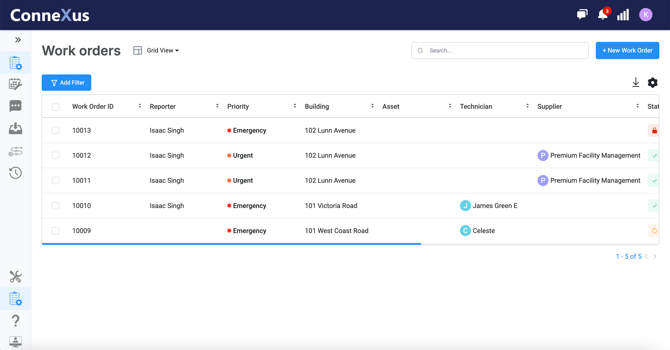
The Grid View is a compact table of Work Orders and Work Order form fields. It gives you an overview of the current Work Orders in your organization. You can sort Work Orders and use grid view to bulk-edit Work Orders.
Calendar View
To access the table view:
- From the sidebar, select Work Orders.
- In the Work Orders module, select the (Calendar View) icon to switch to the Calendar View.
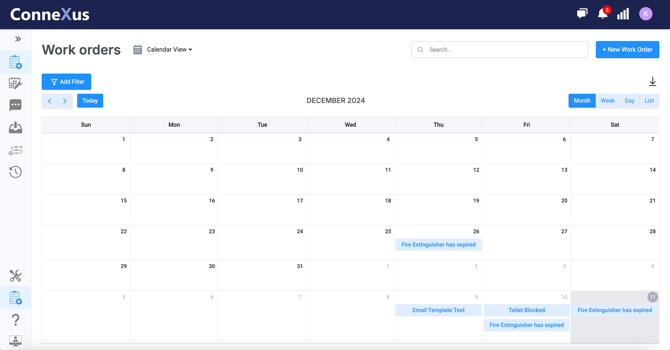
The Calendar View it shows an overview of work orders in a calendar format. Clicking into a work order will bring up the detailed view of the work order. You can also drag and drop Work Orders in the calendar view to change the due date. In the calendar view we can view the Work Orders by Month, Week, Day and List.